Paying for a top-up with crypto, step by step
From the receipt to a confirmed payment: every step of paying for a top-up in crypto, with the checks that keep it smooth.

Jump to a part
Paying in crypto is not difficult, but it has a few more moving parts than tapping a bank card: a coin, a network, an address, an amount, and a short wait while the network confirms. This walkthrough follows a top-up from the first click to the moment your order shows the payment as confirmed. It covers both ways of paying — the crypto checkout and a direct wallet transfer — so you can follow the path you use.
Before you start
Three things make the rest of the process easy:
- Crypto you can send. This can sit on an exchange account or in a wallet you control. Check which coins the checkout accepts, or which network a wallet payment uses, before you move funds around.
- A little extra for fees. Sending crypto costs a network fee, and many exchanges add a withdrawal fee. Have enough to cover those on top of the total.
- Your account set up. You need a verified email address and an authenticator app linked to your account. Both are part of registration.
Step 1: Choose the card balance
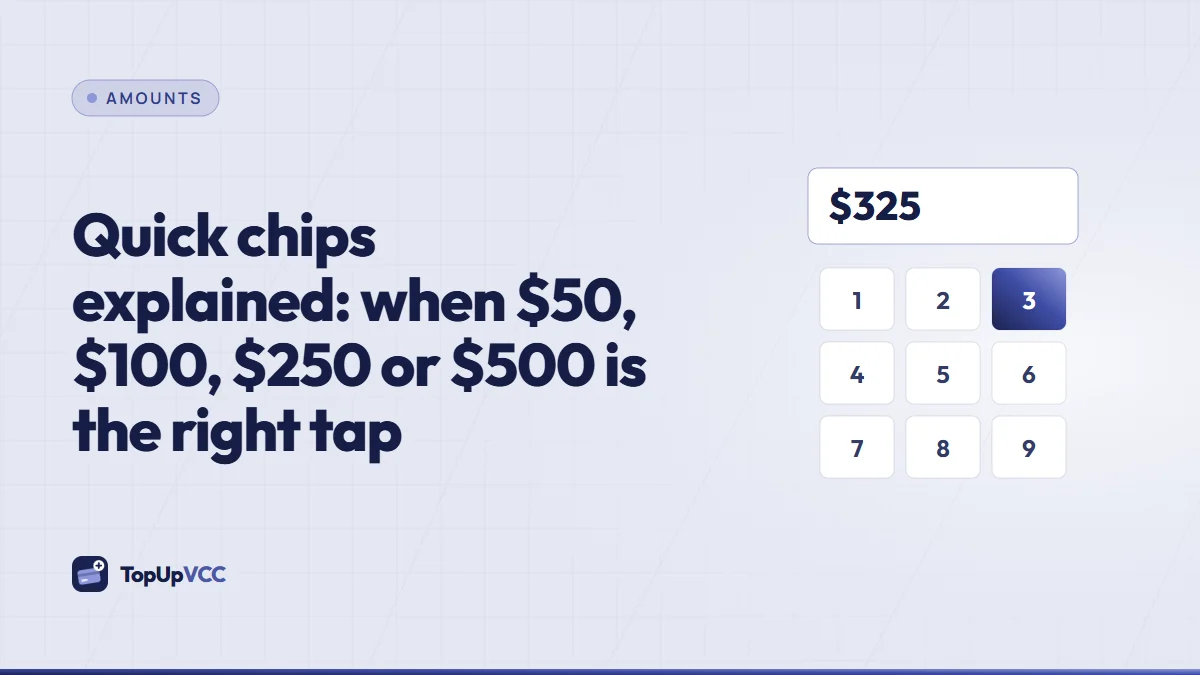
Tap Top up in the tab bar. Type the balance you want on the card, or tap a quick chip. As you type, the readout shows the balance and, under it, what you pay once both fees are folded in: 15% on the balance and $5.00 for the card.
If you are not sure what balance to choose, add a margin for taxes, shipping or currency conversion first. The total you see here is the one you will pay, so take a moment to check it.
Step 2: Pick how you want to pay
Below the balance you will see the payment options that are switched on. There are two kinds:
- Crypto checkout. A hosted payment page: pick a coin there and pay. The page tells us when the payment is confirmed, so you have nothing to paste afterwards.
- Wallet transfer. One of our wallet addresses for a specific coin and network. You send the exact total there and then submit the transaction ID (TXID) so we can match it.
Pick one. The rest of the page changes to match your choice.
Step 3a: Paying through the crypto checkout
- Tick the box to accept the terms, then tap Pay. The top-up is created with its total locked and the checkout page opens.
- Pick the coin you'll pay in. The checkout shows the amount in that coin, the network to use and the address to send to.
- Pay from a wallet or an exchange, copying the network and amount character for character.
- Stay on the page or come back later — when the network confirms the payment, your order changes to Paid – awaiting card.
If you close the checkout before paying, nothing is lost. Open the top-up in Activity and tap Pay to return to it. Our separate guide to using the crypto checkout shows what each part of that page means.
Step 3b: Paying by wallet transfer
- With a wallet row picked, the confirm sheet lays out the QR code, the address and the one network it accepts. Read the network warning under the address.
- Copy the exact total with the Copy button next to it, and the address with the button next to that.
- In your wallet or exchange, choose the same network shown on the page and send the exact total.
- Copy the transaction ID from your wallet's history and paste it into the form. You can add a screenshot of the payment to help us check it faster.
- Tick the box confirming the full total went out on that network, then tap Submit top-up. The receipt shows Pending review.
A transaction ID belongs to a single top-up; the app won't accept it twice. Not sure where your wallet keeps it? Our guide to phone wallets and desktop wallets shows where each kind displays it.
Step 4: Wait for confirmation
Crypto payments are not final the moment you press send. The network has to include the transfer in a block and then add more blocks on top. The wait varies with the chain and its traffic.
While you wait:
- Keep the receipt open or come back to it later; it updates as soon as the payment is confirmed.
- On a checkout order, the Check status button tells you whether a confirmation has reached us.
- Avoid sending a second payment “just in case”. A second transfer is a second payment and has to be sorted out separately.
Step 5: Your card is issued
Once the order shows the payment as confirmed, a team member checks it and issues your card. Most paid top-ups turn into a card within a few hours. An email and an Inbox message tell you when the card is ready; it then sits in the Cards tab, showing balance, expiry and billing address.
Mistakes to avoid
Most payment problems come from the same few slips:
- Choosing a different network from the one on the page. Funds sent on the wrong network may not be recoverable.
- Letting fees come out of the amount. When an exchange subtracts its withdrawal fee from the figure you send, the payment lands short and the top-up is held as underpaid.
- Editing the address by hand. Paste it, then check that the opening and closing characters match.
- Pasting the wrong TXID, for example one from an older transfer.
For the full journey with screenshots of each status, see the How it goes page.
Quick answers
Which coins can I use?
The checkout lists the coins it accepts when you open it. Wallet transfers show the single coin and network for that wallet. Use exactly what the page shows.
Do I need to submit anything after paying through the checkout?
No. The checkout confirms the payment to us directly. Only wallet transfers need a transaction ID.
What if the price of the coin changes while I pay?
The checkout fixes the amount in the coin for a limited time. For wallet transfers in a stablecoin, the amount is the dollar total. With other coins, follow the amount shown on the page at the moment you pay.
Can I pay for one order from two wallets?
Avoid it. Two transfers make matching harder and can leave the order underpaid while the second is still confirming. Send one payment for the full total.
Summary
Tap in a balance, pick checkout or wallet, send the full total on the right chain, and let the network confirm. The checkout confirms itself; a wallet transfer needs its transaction ID. After that, a person issues your card and it appears in your account.